Unframed version suitable for printing

Vinyl Restoration  Digitising Your Vinyl Record Collection

Planning

"If a job's worth doing, it's worth doing it well" applies to digitising vinyls.  However, doing it well is an extremely time-consuming process.  Obviously, you have to record the tracks in real time, but the time spent digitally editing the wave files to remove scratches is usually far more significant.  I had about 150 singles, 400 - 500 LPs, inheriting another 100 - 200 when my mother died, and after some years I still haven't finished.  If you have any quantity, you need to think about reducing the workload.

Popular music, in particular, dates very quickly, and a lot of it is very similar and formulaic.  Generally, only a small percentage from any era is worth keeping.  Even allowing for the fact that my era  late 60s/early 70s  was a particularly creative time, the number of pop CDs that I want to keep in their entirety is low.  Realising this more than halved my problem.  Accordingly …

  1. Listen critically through the entire collection, and classify them as to whether:
  2. Hopefully this will reduce those to be digitised to relatively small numbers mainly of individual tracks plus the odd deleted entire LP  Concentrate your digitising efforts on these that you can't obtain any other way.

What You Need

  1. Record Cleaner  if you have a serious number of vinyls to do, then a record cleaning machine can remove much of the dirt from the grooves before recording, which is much better than trying to remove the noise from the resulting digital recording.  However, the cleaning agents supplied can be quite strong, and may affect plastic soft brushes used for cleaning (is natural bristle better?), and may even degrade some vinyls.  Accordingly, follow the procedure outlined below.
  2. Record Player  this may be a deck with integral phono preamp, or a deck only.  If it has an integral preamp, then it can be connected directly to the Line-In of the soundcard, but the output level from a deck alone is too low to drive a Line-In, and the frequency response of vinyls is prebiased, requiring compensation on playback (RIAA Equalisation).  Consequently, a standalone deck will need to be connected to your soundcard through a phono preamp to boost and compensate the signal.  This might be a separate unit, the Phono inputs of a hifi amp, or of a mixing desk.  Connect its Line-Out to the Line-In of the soundcard.  Another problem with record decks is earthing.  Friction of the stylus in the groove tends to build up static enough to give a nasty kick to the operator, but earthing to prevent this may create a mains hum loop.  There is no hard and fast advice, so experiment and choose what works best.
  3. Soundcard with a stereo Line-In socket.
  4. Digital Audio Recording And Editing Software  I have been using DCart v5 and Sound Forge v7.  Both are commercial software with a significant price tag.  I've tried various cheap or free pieces of software the names of which I cannot now remember, but their scratch and noise removal or other features were inadequate.
  5. CD Burning Software.
  6. CD (Re)Writer.

Procedure

  1. Ensure that the deck is well set up  appropriately connected, appropriately earthed with no mains hum, correct and accurate turntable speed(s), good quality stylus, balanced arm, correct stylus pressure, correct bias compensation, etc.
  2. Clean the stylus.
  3. Clean the record using a cleaning cloth or other such method.  Do NOT use a machine yet.
  4. Record both sides of the vinyl as wave files (*.wav), usually about 420MB.  Set levels such that the loudest signal level almost fills the available volume range without clipping (except that caused by scratches).  Afterwards, check recording peaks for clipping, and if necessary re-record with lower levels.  Avoiding writing with the vinyl surface as background, note the final levels on a corner of the inner sleeve, or on a sticky note attached to it.
  5. If you have a cleaning machine, repeat 2 - 4, using it in 3.  Choose the best recording.
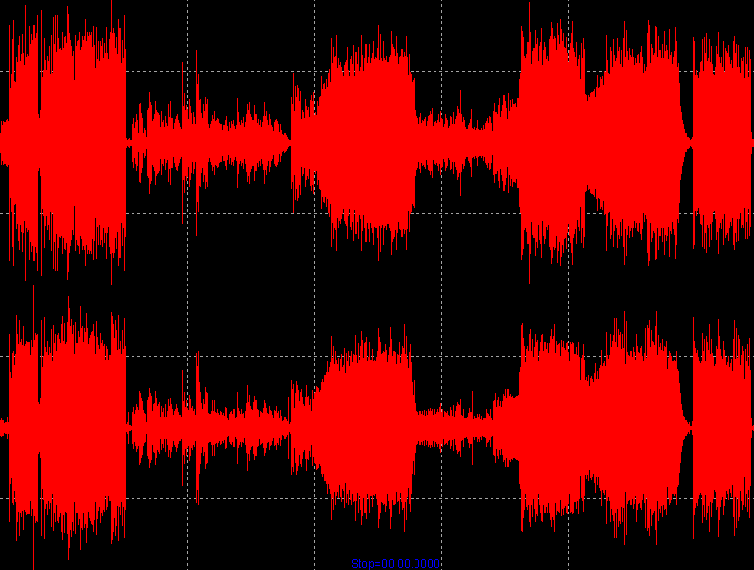
  6. You now have a recording of each side looking something like (for a stereo vinyl): A recording of one side of an LP loaded into digital sound editing software
  7. If the album consists of tracks separated by periods of silence, it's probably easiest to split the wave file into individual tracks now, and deal with each track separately, but if the tracks run into one another, you will have to keep the whole side together as a unit for the next stage.
  8. What happens now is software dependent.  Some can mark or interpolate scratches (aka impulses) automatically, but usually many more normal transients than genuine flaws are marked or interpolated, so false marks overwhelm one, or automatic interpolation ruins the sound.  I use the Interpolate command in DCart to remove individual scratches by replacing the current selection with interpolated waveform, though care is needed in choosing start and end points for the selection, as small changes can make large differences to the replacement.  Notwithstanding the caution above, I sometimes apply Sound Forge's Click and Crackle Removal for auto removal of vinyl 'wear'.  My method in more detail is:
    1. If you have turntable rumble, sample it from the side or track lead in or lead out, and save the sample.  For obvious reasons, this has to be done now, but is easily overlooked.
    2. Mute silent passages such as the lead in and lead out of each track or side.  Fade in and out the second immediately before and after the genuine sound.
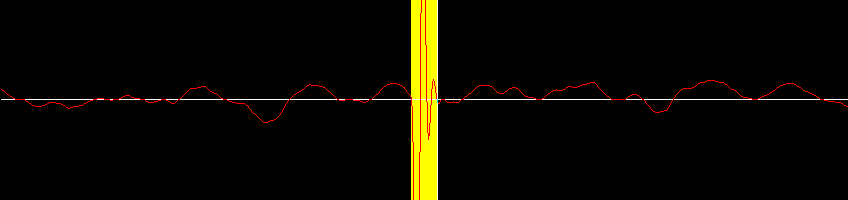
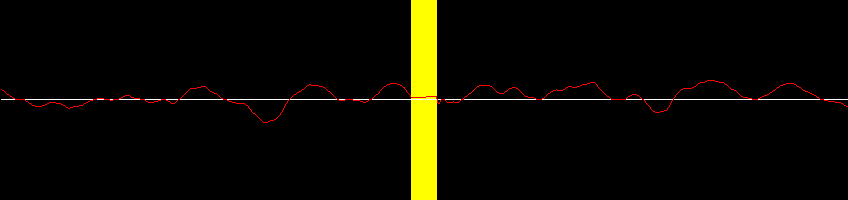
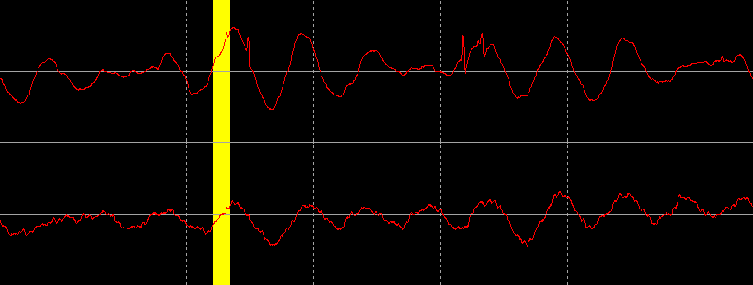
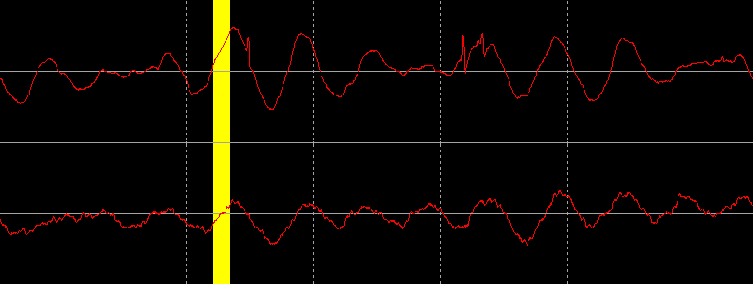
    3. Manually interpolate all the big scratches, the ones that are easy to find both aurally because they disrupt the sound unacceptably, and/or visually because their peaks stand out and perhaps cause clipping.  Here's an example from a piping recording (click images to play samples):
      Before
      A vinyl waveform including a scratch loaded into digital sound editing software
      After
      A vinyl waveform including a scratch which has been removed by interpolation loaded into digital sound editing software
    4. Remove the smaller scratches.  This will be much more time consuming because they are too small to stand out visually in the waveform, the only method of finding them being aurally.  A typical procedure might be to use what programmers call a binary chop method by dropping markers to bracket the location of the scratch ever more closely:
      1. Playing back in the digital waveform editor, drop a marker the moment a blemish is heard.
      2. Drop another marker before the blemish, and play between them to check that they bracket it.
      3. Select from before the leading marker to half way between the markers and play this back.
      4. If you hear the blemish, then it lies in the first half of the marked area, so move the trailing marker onto the trailing edge of the selection, otherwise it should be in the second half of the marked area.  To check, drag the leading edge of the selection to a little beyond the trailing marker, so it becomes the trailing edge, and play this new selection.  You should hear the blemish, proving it lies in the second half of the marked area, so drag the leading marker to lie on the leading edge of the selection.
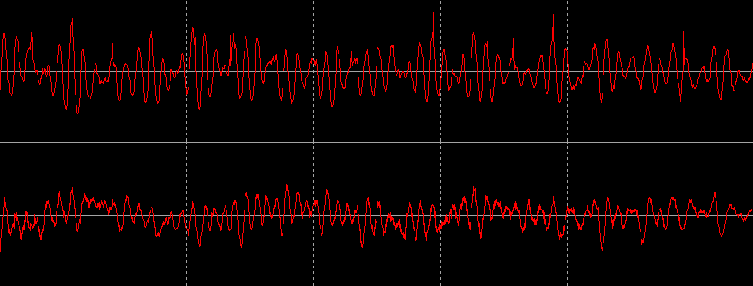
      Thus you have halved the size of the marked area.  Repeat this halving procedure until you've located the scratch visually, and fix it by whatever method of interpolation is supported by the software.  Here's an example containing a number of them close together, before and after they've been interpolated (click images to play samples):
      Before, some of the blemishes are just becoming visible at this zoom level
      A vinyl waveform including several small scratches loaded into digital sound editing software
      Detail showing one of many small blemishes selected for interpolation, and others yet to do
      A vinyl waveform including several small scratches loaded into digital sound editing software
      The same showing it interpolated (the audio demonstrates the result of interpolating them all)
      A vinyl waveform including several small scratches one of which has been removed by interpolation loaded into digital sound editing software
    5. If necessary, use a mild application of automatic removal to get rid of the 'needle in the groove' noise that would otherwise mar quieter passages.
  9. If you haven't already, split the CD into tracks.  With recordings where individual tracks run into each other seamlessly when playing from start to finish, this will only happen on CD if track boundaries coincide with sector boundaries, and either your wave editing or your burning software must be able to arrange this for you.  In DCart, you select where the track boundaries should go using markers, then choose CD-Prep, Quantize for CD Audio, whereupon the software adjusts the markers to lie on the nearest boundary, and then you split the file into tracks.  Other software will doubtless be different in its behaviour.
  10. Burn a CD-RW.  Check that besides playing from start to finish correctly, the tracks start and end at the expected locations in the music, and that random choice of tracks works.
  11. Burn a CD-R.  Check that besides playing from start to finish correctly, random choice of tracks works, the latter being a test of a good burn.  Failure of this test may be a sign of poor quality CD-Rs